Split items
After scanning a receipt you can split the expense by items: pick a person, tap what they had, and Isshio divides the amount accordingly. The feature carries the chips “Beta” and “Preview”.
How it works
Scan a receipt as described under “Scan receipt”. If Isshio found at least two items and the group has at least two visible people, the band of the expense shows the number of items and the “Split items” button.
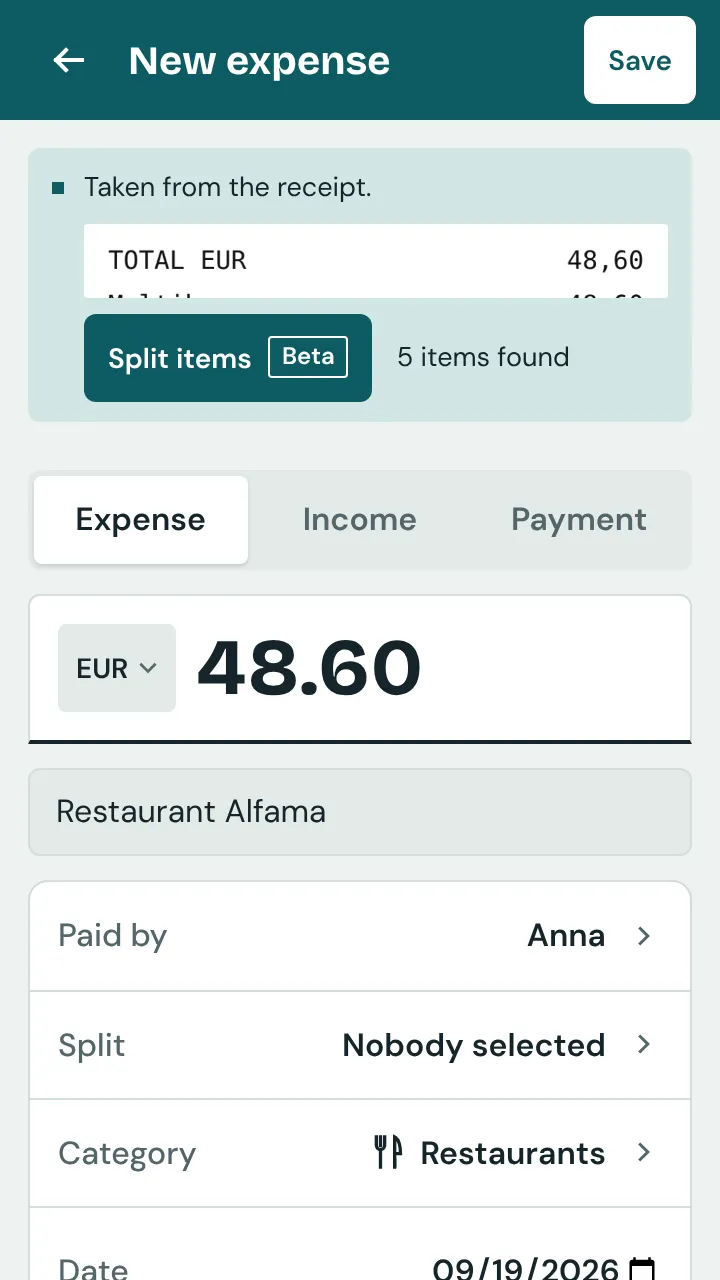
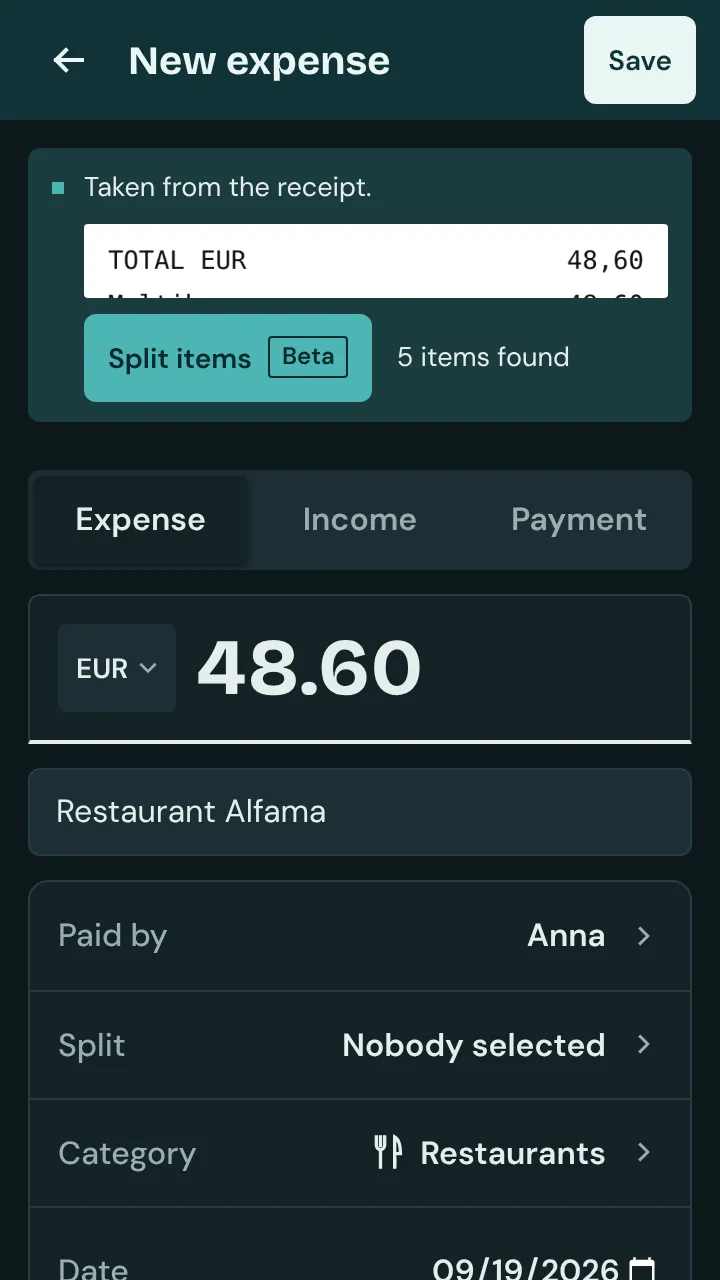
Tap “Split items”. At the top there is a field for each person with their total; yours is selected at first. Below are the items of the receipt.
Tap what the selected person had; a second tap takes the item back. Then pick the next person. Several people on one item share it equally, and what nobody taps is shared by everyone (it says “Everyone”).
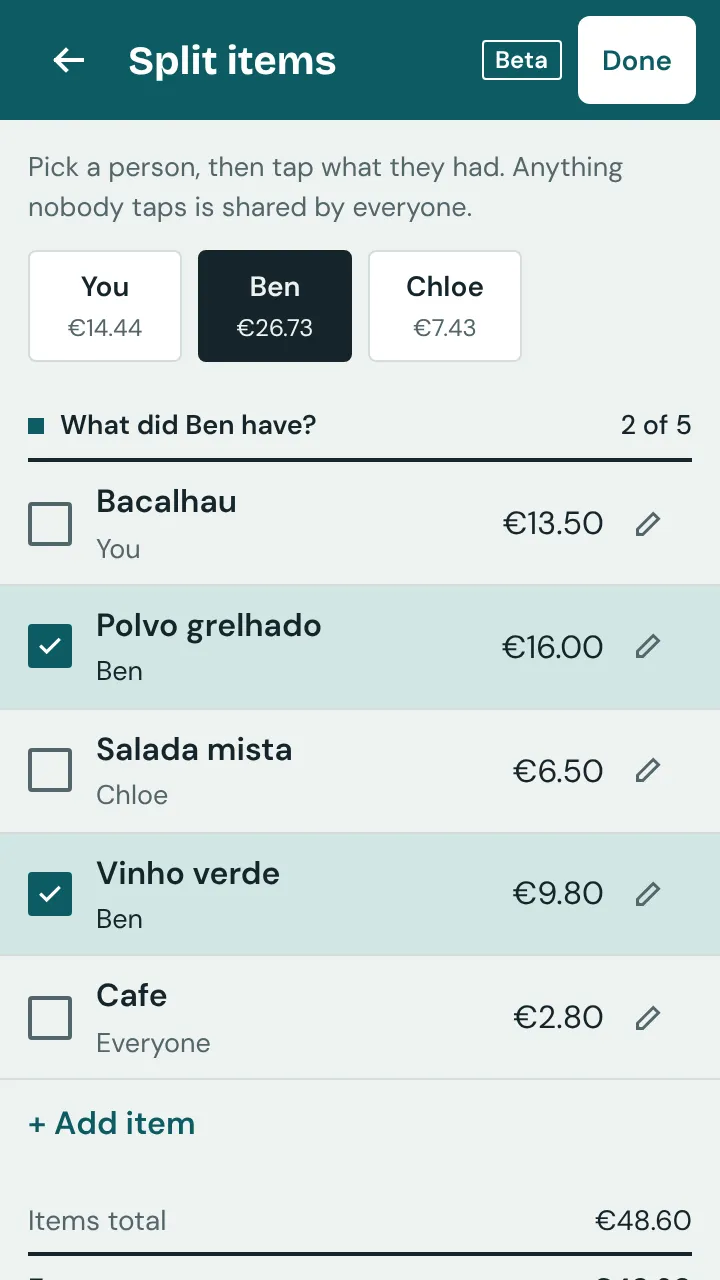
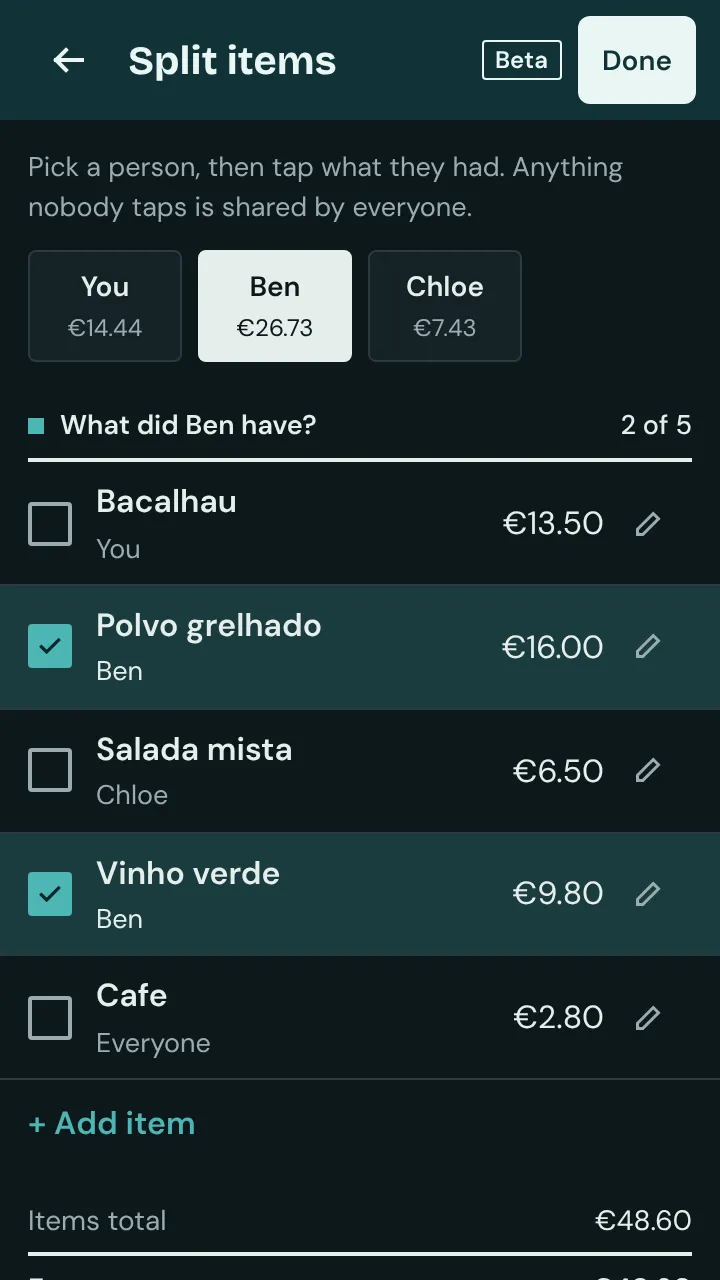
The pencil next to an item opens its name and price, with “Delete” there too. Use “+ Add item” to add what’s missing. Below the list are “Items total” and “Expense amount”.
Nothing blocks you: a difference from the amount (tax, tip, an item that wasn’t found, a discount) appears as a line, for example “Still open, shared proportionally”, and is spread across everyone in proportion to their items. The total is always exact to the cent.
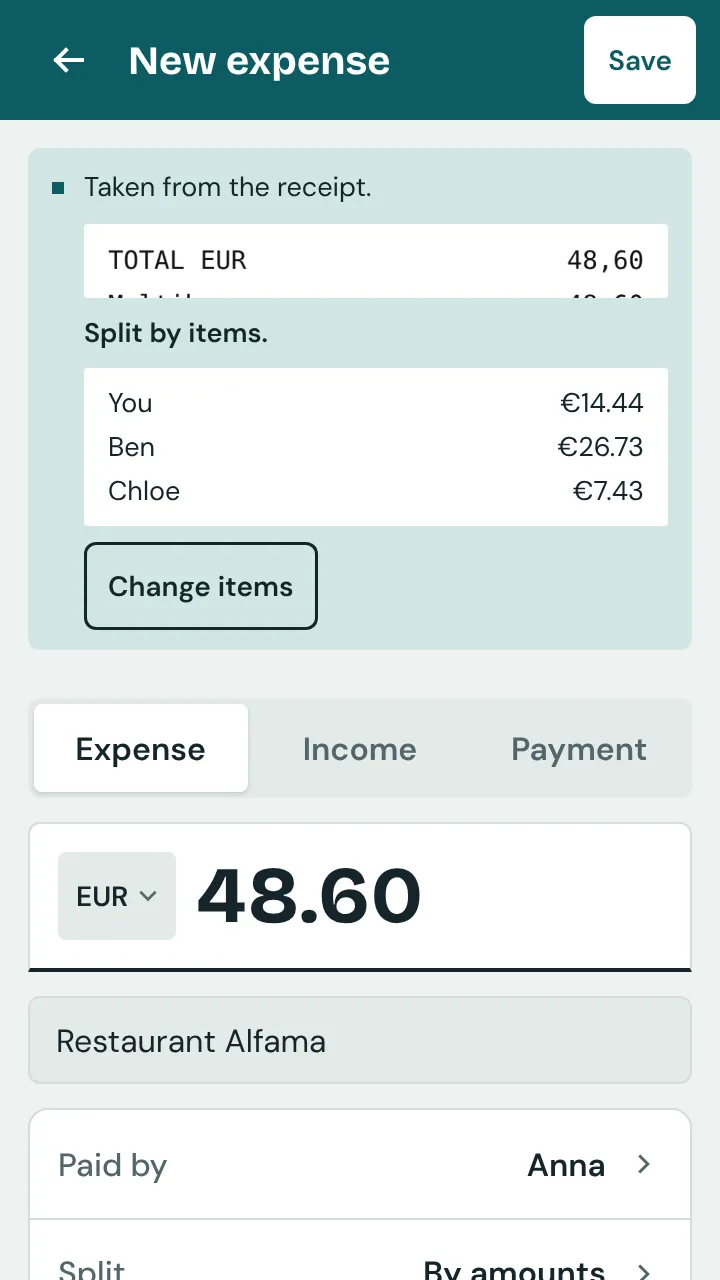
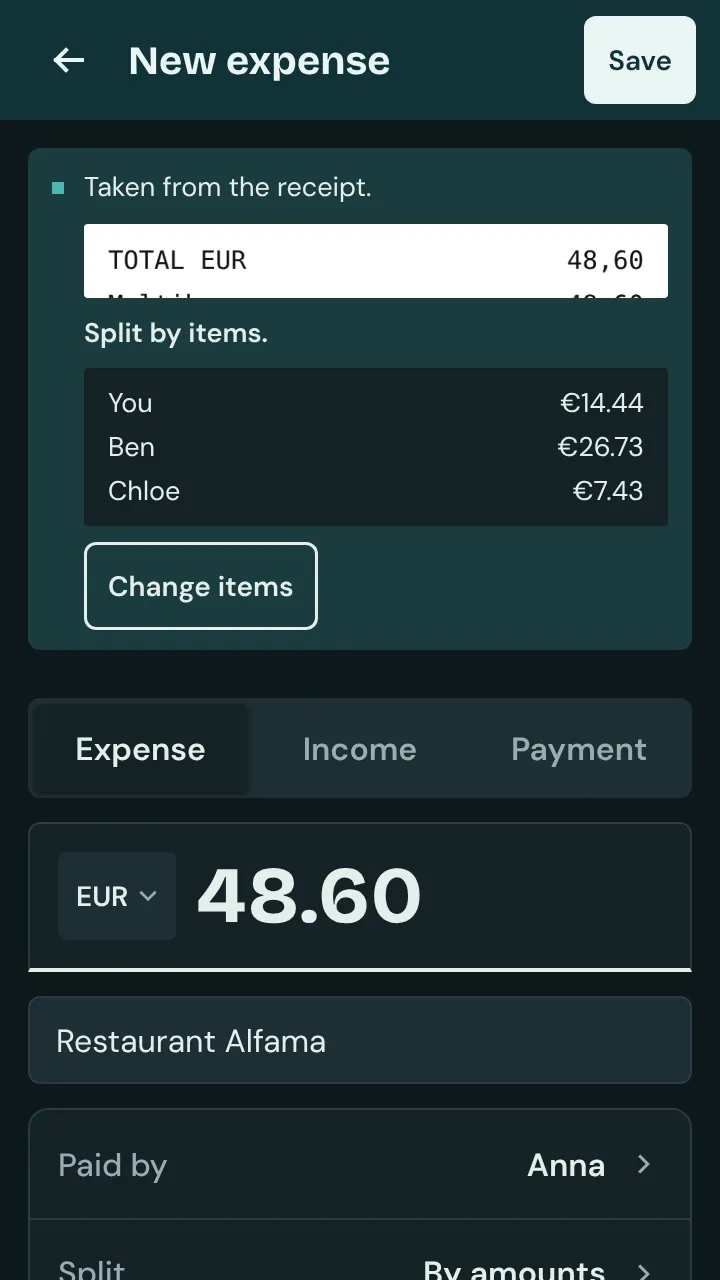
Tap “Done”. The band says “Split by items.” with each person’s total, and the expense’s split is “By amounts”. “Change items” takes you back. If you change the amount, Isshio recalculates; if you change the split yourself, your choice stays. It is only saved with “Save”.