Hiding people
When someone moves out of the flat, they shouldn’t get in the way of new expenses. Hiding takes them out of the selection without losing old entries or balances.
How it works
Open the group’s settings and tap “Names and shares” under “People”. People without entries are removed there with ×; everyone else is hidden.
Tap “Hide” next to the name. The question below shows what the person still gets or owes. Tap “Hide” there once more.
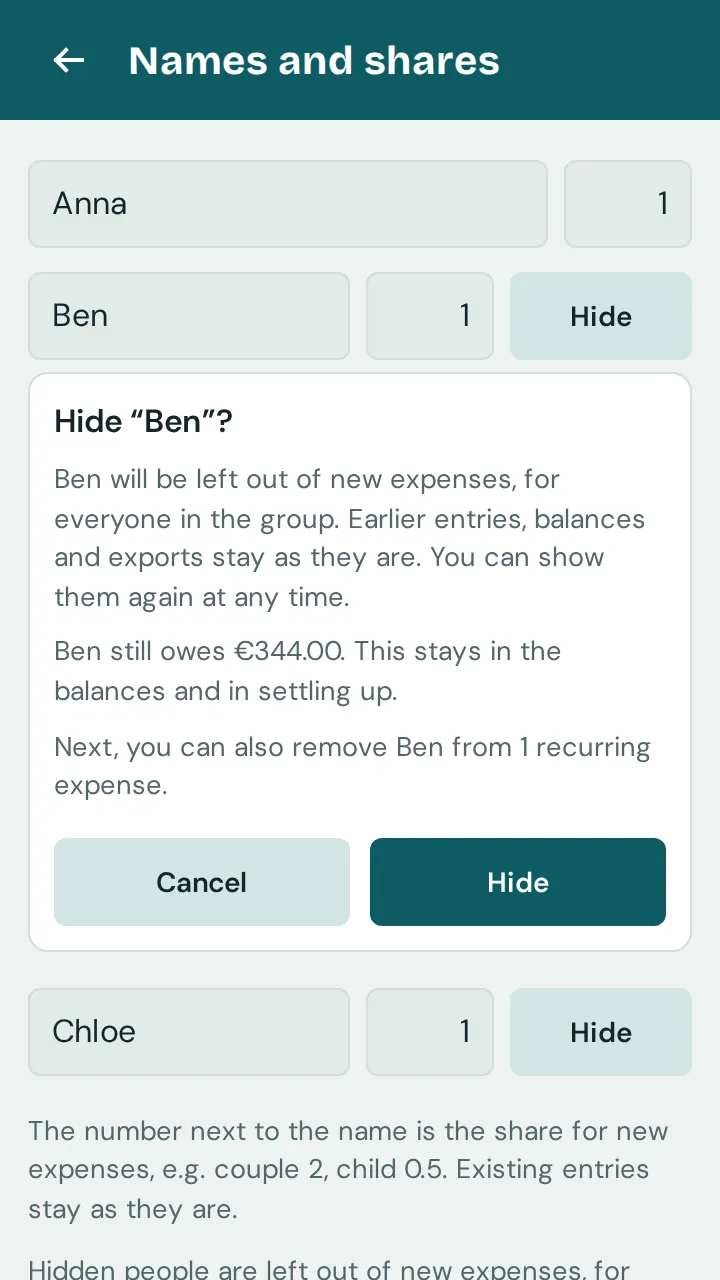
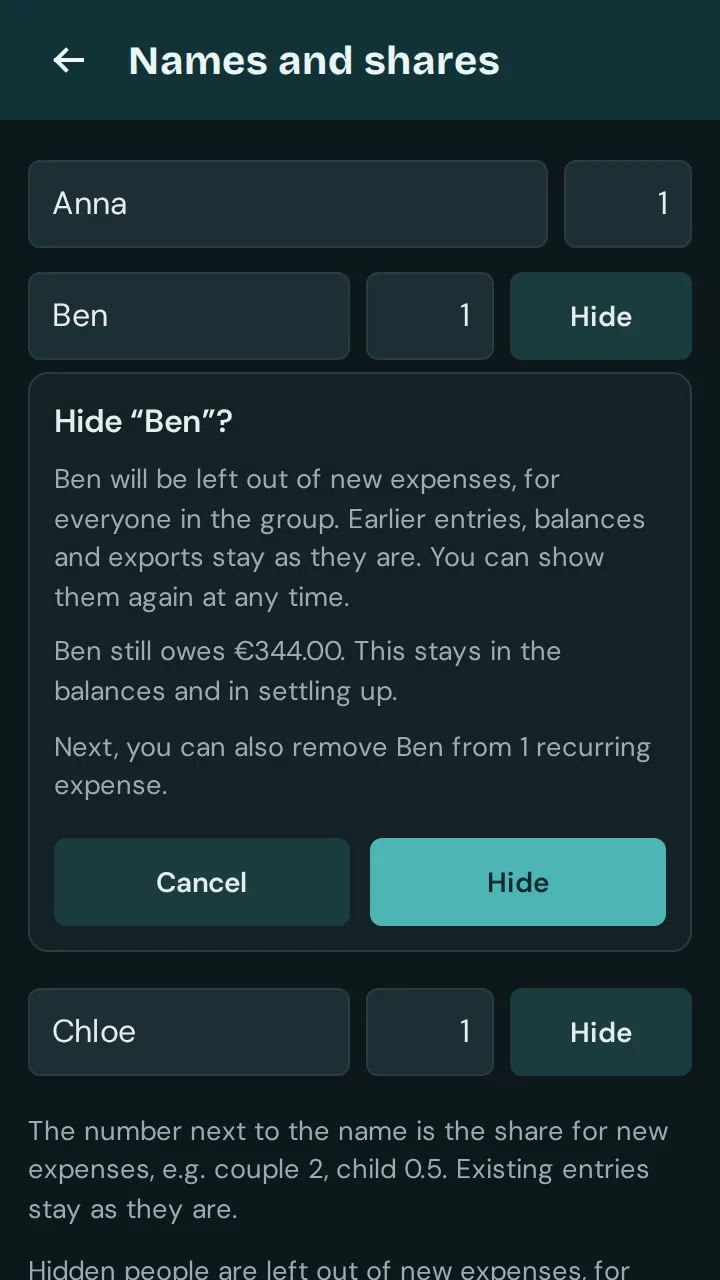
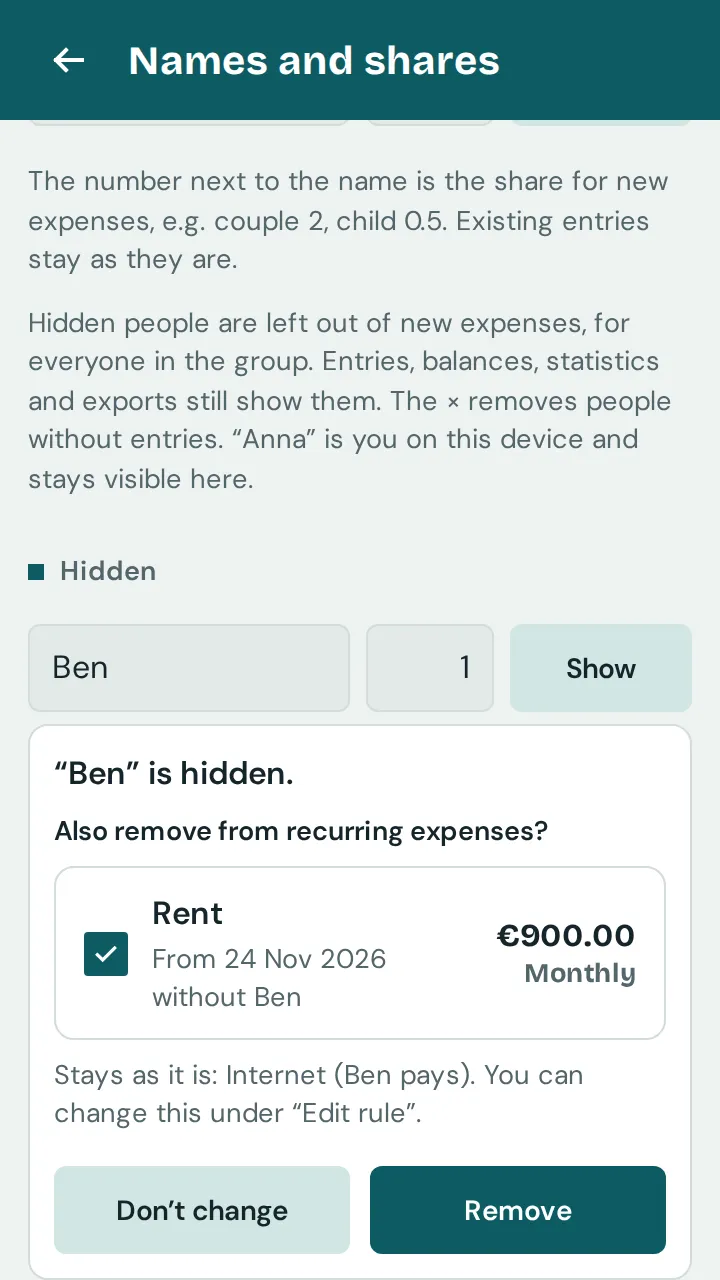
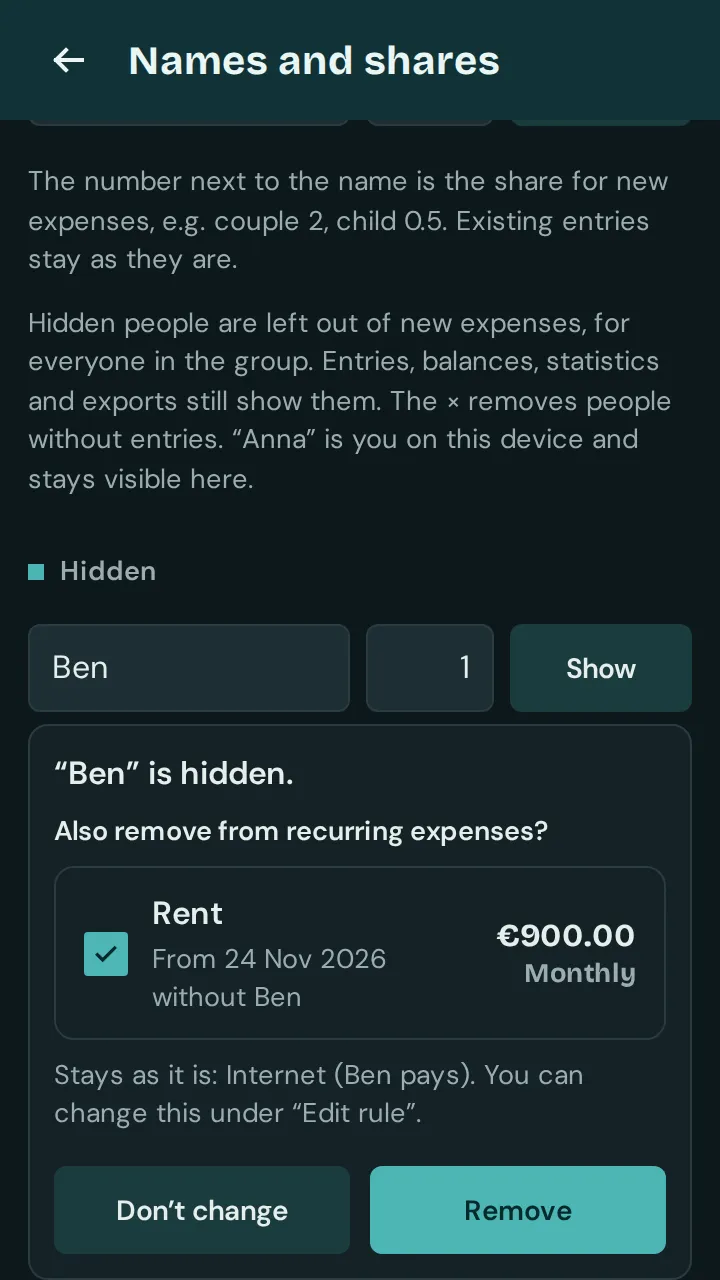
If the person is in recurring expenses, the app asks: “Also remove from recurring expenses?” Leave the expenses ticked that should continue without them and tap “Remove”. From the next time on, the others share the amount. If the person pays it themselves or it is split by percent or by amounts, the expense stays as it is; you change that under “Edit rule”.
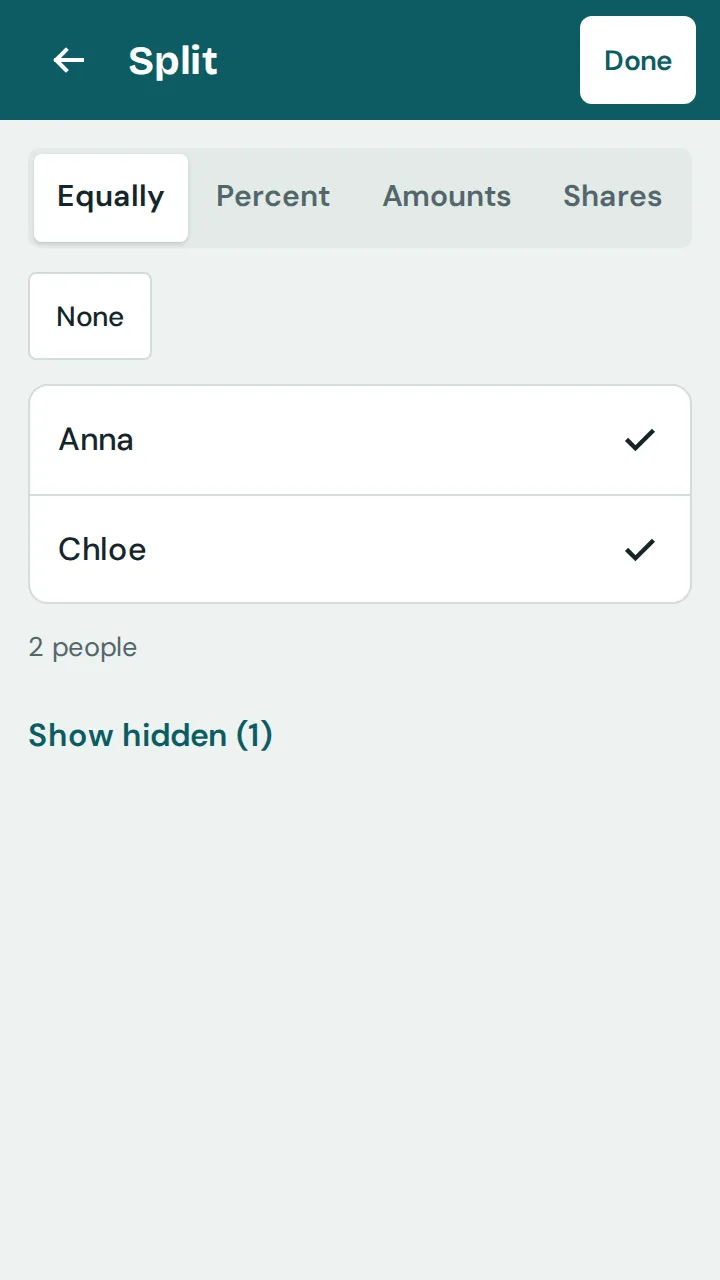
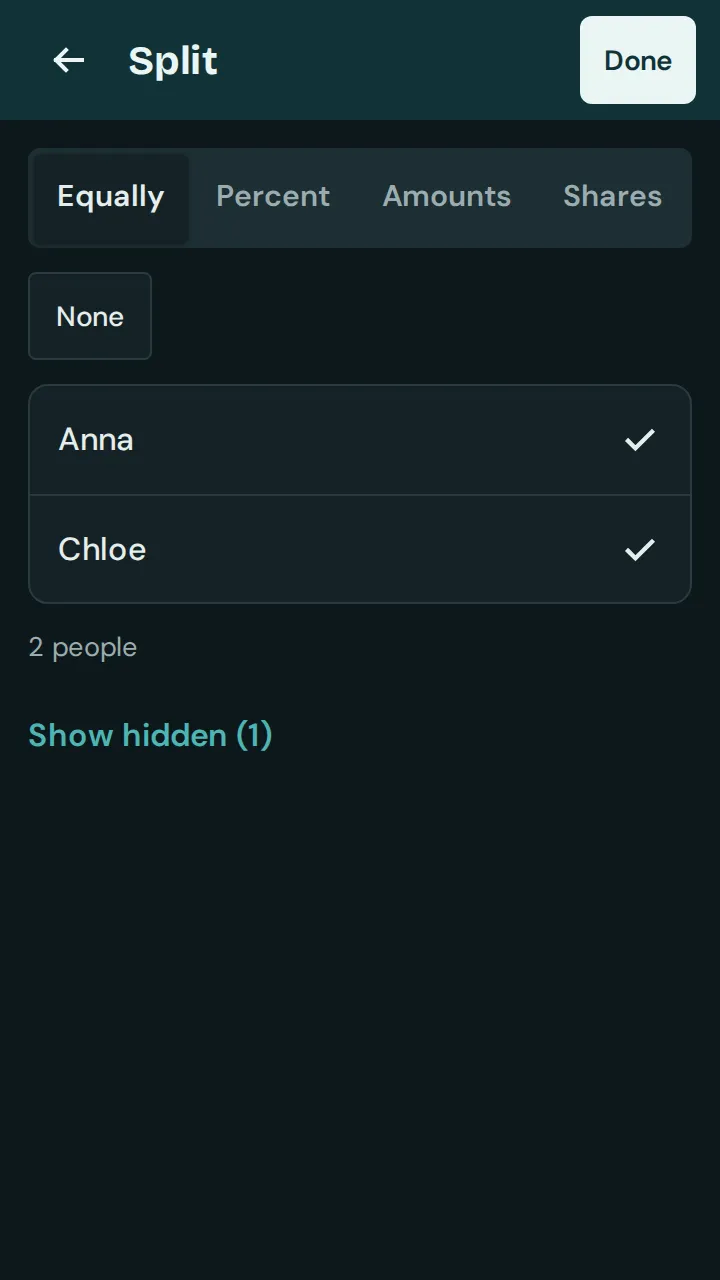
In new expenses, the person is missing under “Paid by” and “Split”, and “All” only means the others. If you need them after all, tap “Show hidden (1)” below the list.
If the person still has an open amount, they appear with the note “hidden” in the “Overview” tab and under “From” and “To” of a payment until everything is paid. You can bring them back at any time under “Hidden” with “Show”.