Scan receipt
Take a photo of a receipt or bill. Isshio reads the amount, date, title and currency and suggests a category, all on your device only.
How it works
Open the group and tap +. On the right of the “Expense” row is “Scan”.
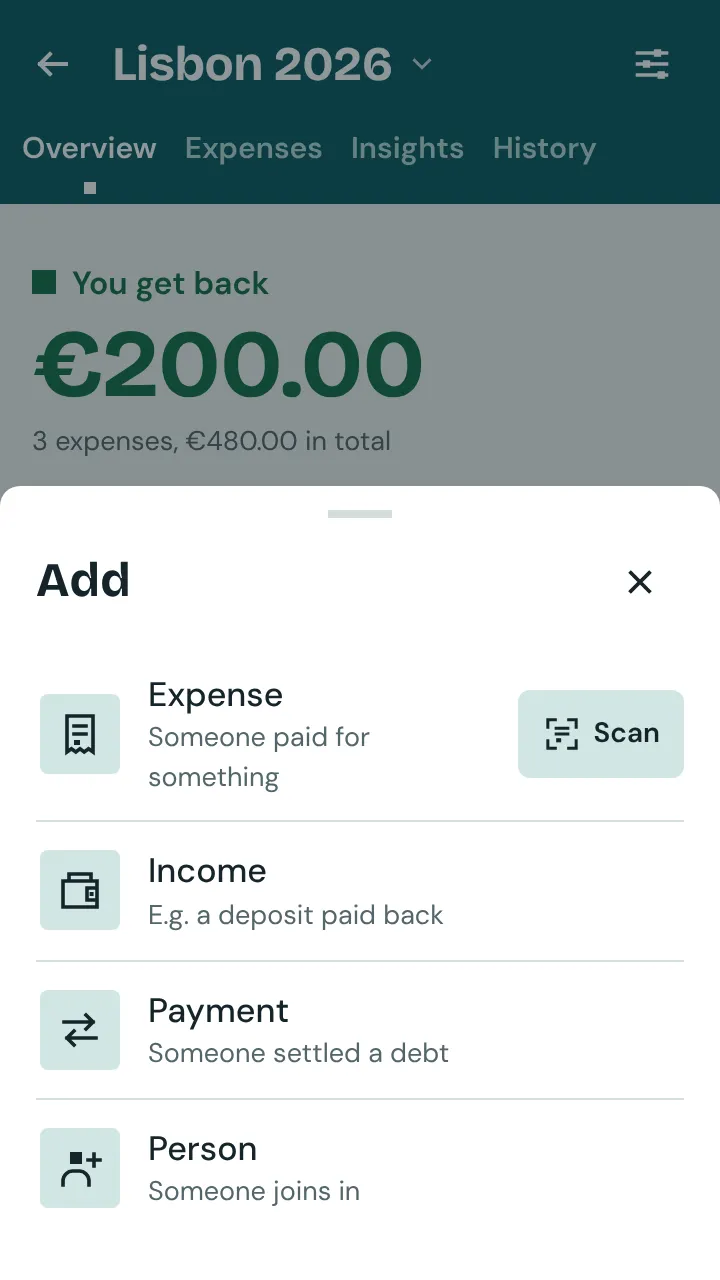
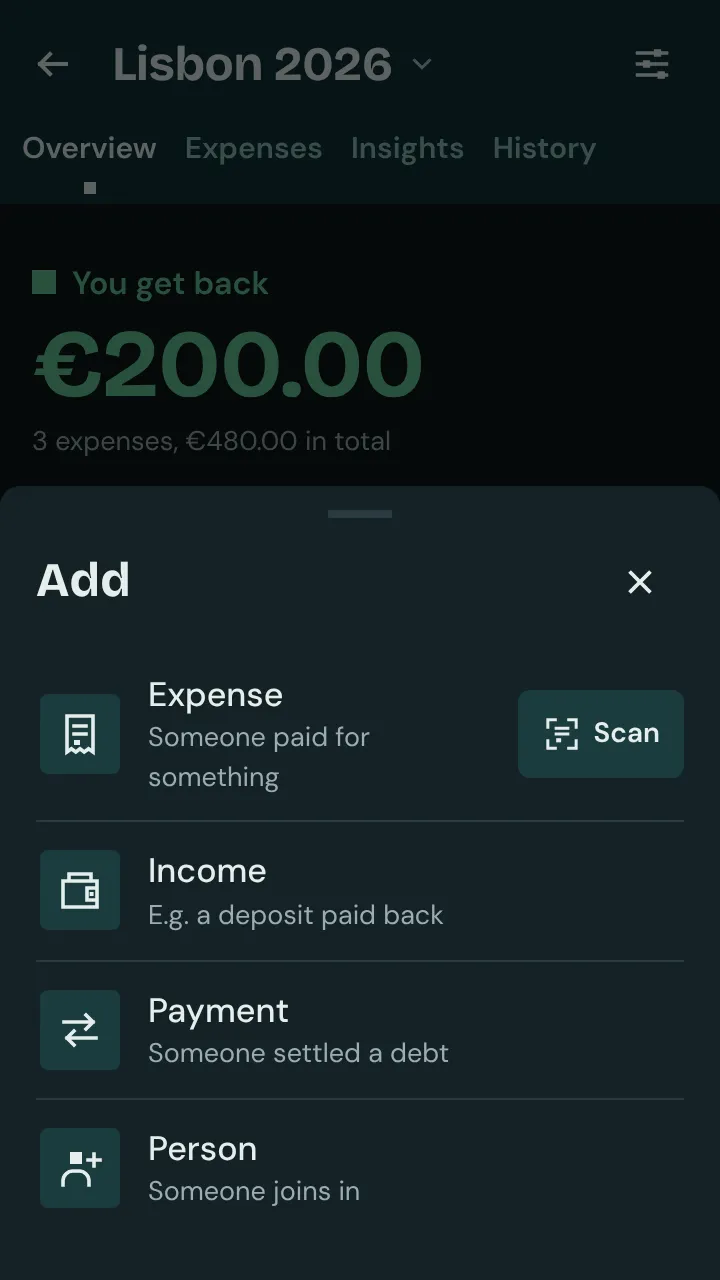
The first time, Isshio downloads the text recognition files once (28 MB) from isshio.com, ideally on Wi-Fi. Tap “Download” and then “Choose receipt”. From then on, “Scan” opens the picker straight away, even offline. You can also download them in advance, for example before a trip: Settings on the start screen, “Adding expenses” → “Scan receipt”.
Take a photo with the camera or choose a picture from your gallery. It works best when the receipt is straight, complete and sharp. Reading usually takes a few seconds; “Cancel” takes you back. If the receipt can’t be read, the expense opens for you to fill in by hand.
The new expense is already filled in. At the top it says “Taken from the receipt.” with the line of the receipt the amount comes from. If a field is uncertain, it says something like “Please check: Amount.” and the field has a frame; if the amount is uncertain, more amounts from the receipt are offered under “Other amounts”. Choose under “Split” who the expense was for and tap “Save”. Nothing is saved before that.
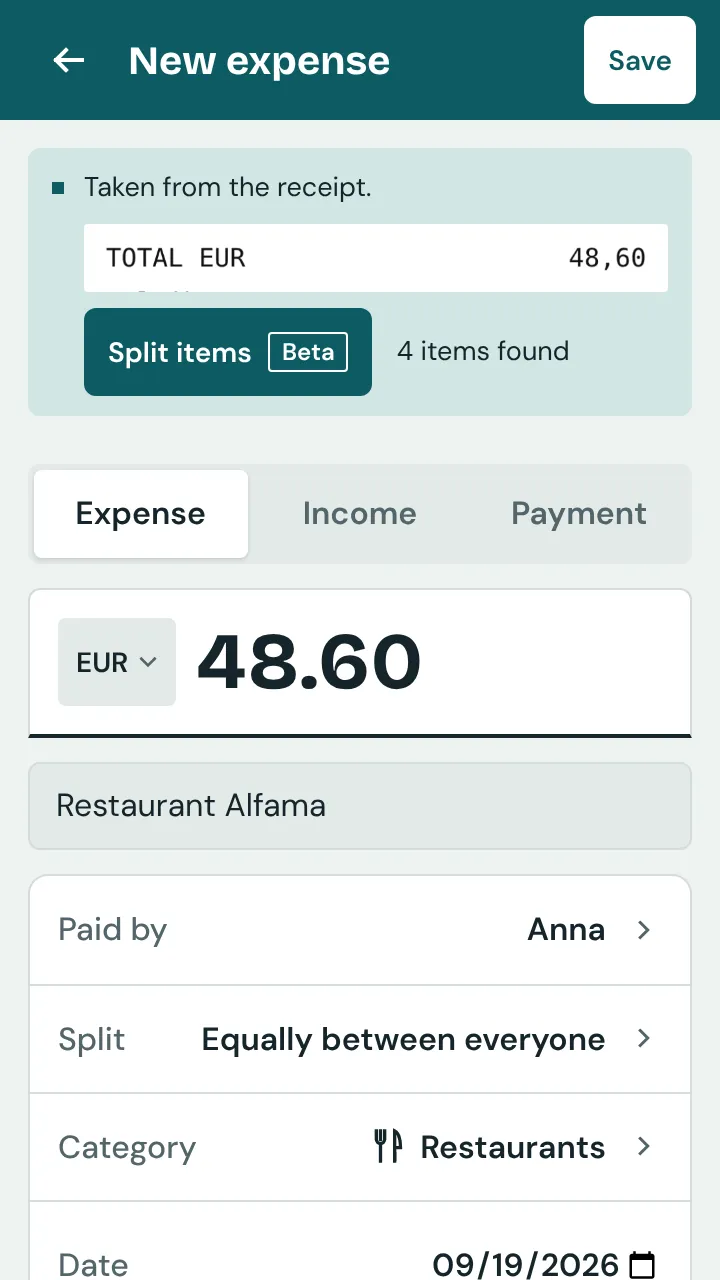
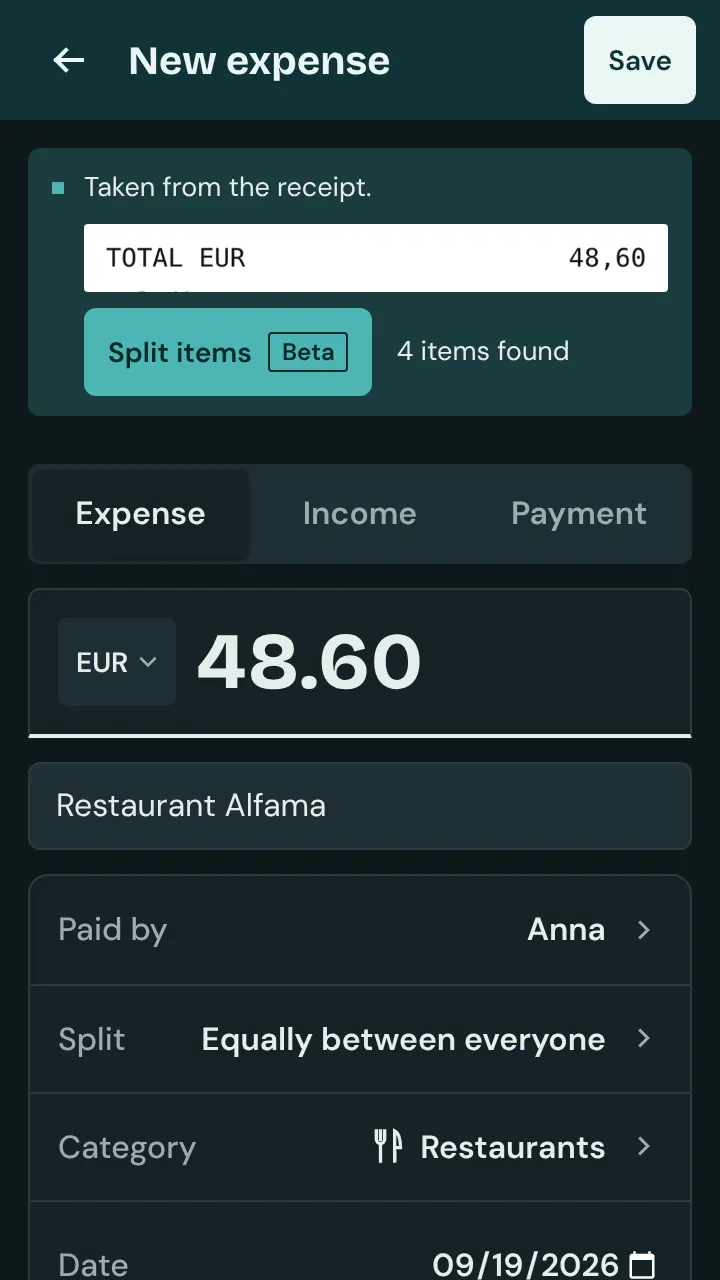
If the receipt shows a different currency from the group, Isshio takes it as a foreign currency, always with “Please check: Amount.”. Enter the amount in the group’s currency as with any foreign currency.
Other scripts (Chinese and Japanese, Korean, Thai, Greek, Cyrillic) are only downloaded if you want them. If the group’s currency fits, such as yen or won, Isshio offers the script when you scan. In Settings on the start screen under “Adding expenses” → “Scan receipt” you download or delete each script on its own, or everything at once with “Delete all files”.